Turning a paragraph of plain text into a polished flowchart used to mean opening a design tool, choosing a template, and manually placing boxes and arrows until something looked presentable. Napkin AI changes that process by reading what you write and proposing a matching visual on its own, whether that means a timeline, a pyramid, a mind map, or a full flowchart. The tool has grown quickly because it solves a problem almost every writer, teacher, and business professional runs into at some point: explaining something well in words but struggling to show it visually without spending an hour in a design app.
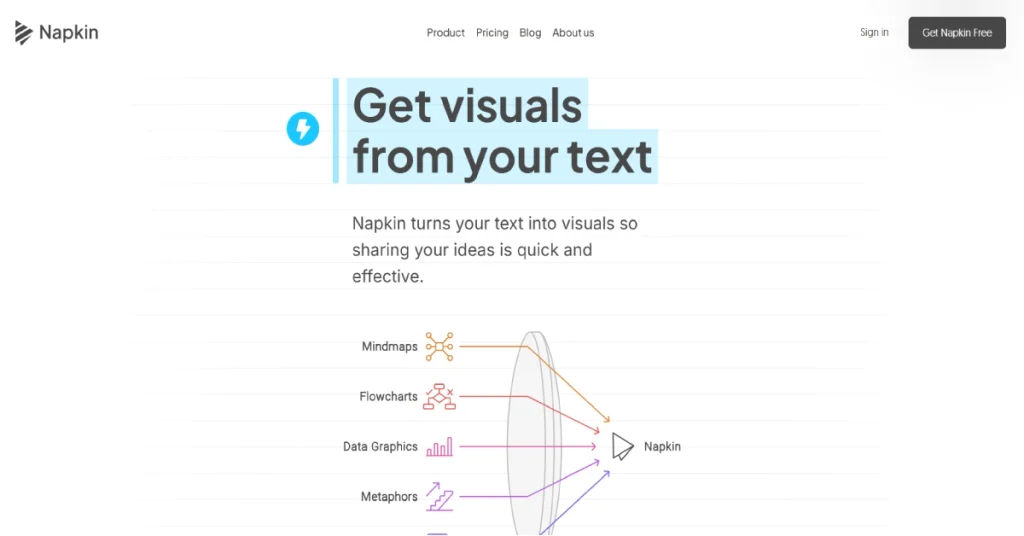
This review looks at what Napkin AI actually does, how its credit based pricing works, where it genuinely saves time, and where its limits show up. Whether you are drafting a presentation, building a blog post that needs a clear diagram, or documenting a process for a team, this breakdown should help you decide if Napkin AI belongs in your workflow.
What Is Napkin AI
Napkin AI is a browser based tool that converts written text into editable visual content. You paste or type a paragraph, a bullet outline, or even a full document, and the tool analyzes the structure of what you wrote to suggest a diagram format that fits. A step by step process becomes a flowchart. A comparison becomes a table or a versus diagram. A list of stages becomes a timeline or a funnel. The output is not a static image either. Every element remains editable inside the app, so you can swap icons, change colors, resize shapes, and rearrange the layout after the initial generation.
The tool sits somewhere between a presentation builder and a diagramming app, but its core differentiator is the text to visual step. Traditional tools like a blank slide deck or a diagram canvas start you with nothing. Napkin AI starts you with a structured first draft based on your own writing, which you then refine rather than build from scratch. This matters most for people who think and communicate in sentences but need to present that thinking visually for a slide, a report, or a webpage.
Napkin AI supports importing existing files including PowerPoint decks, Word documents, PDFs, HTML pages, and Markdown files, which means you can bring content you already have and let the tool suggest visuals from it rather than starting a new document. It also generates content in more than sixty languages, which broadens its usefulness for teams and creators working outside English language markets.
Core Features Worth Knowing About
Text to Visual Generation
This is the feature Napkin AI is built around. You type or paste text into the editor, and the tool reads the sentence structure to detect relationships such as sequence, hierarchy, comparison, or cause and effect. Based on what it detects, it proposes one or more diagram styles you can choose from. A paragraph describing three phases of a project might generate a timeline, a numbered process flow, or a simple stepped diagram, and you pick whichever best matches your intent.
The generation is fast, typically producing a usable draft within seconds of submitting your text. What makes this more than a novelty is that the output respects the actual logic of your writing rather than applying a generic template regardless of content. If your text describes a hierarchy, you get a diagram with parent and child relationships rather than a flat list styled to look busy.
Editable Diagram Elements
Once a diagram generates, nothing about it is locked. You can click into any shape to change its text, swap out icons from Napkin’s built in icon library, adjust colors individually or across the whole diagram, resize and reposition elements freely, and add or remove connecting lines and arrows. This editability is what separates Napkin AI from simple AI image generators that produce a picture you cannot meaningfully adjust afterward. Because the output is a structured, editable object rather than a flattened image, it behaves more like a native diagram built inside a design tool.
Brand Styling and Custom Fonts
Paid plans unlock brand kit functionality, letting you upload a logo, set specific brand colors either manually or by extracting them automatically from an uploaded image, and save these as a reusable style profile. The Plus tier allows up to three saved brand styles, which works well if you manage content for a couple of distinct brands or clients. The Pro tier removes that cap entirely and adds the ability to upload custom fonts, which matters for teams with strict brand guidelines that specify a particular typeface rather than relying on Napkin’s built in font library.
Presentation Mode
Beyond individual diagrams, Napkin AI supports building out full presentations by chaining multiple generated visuals into slides. This positions it as a lightweight alternative to opening a separate slide deck tool when your presentation is mostly diagram driven rather than heavy on free form design. You can export a full document as a continuous page PDF, an A4 formatted PDF, or a 16:9 presentation formatted PDF depending on how you intend to use it.
File Import and Export Options
On the import side, Napkin AI accepts PowerPoint files, Word documents, PDFs, HTML, and Markdown, which is useful if you already have written content sitting in another format and want to pull diagrams out of it rather than retyping everything into Napkin directly. On the export side, every plan allows PNG and PDF downloads. Paid plans add PowerPoint and SVG export, which matters if your diagrams need to land inside an existing slide deck or need to remain fully editable vector graphics for further design work outside the platform.
Browser Extension
Napkin AI offers a browser extension that lets you select text on any webpage or document and generate a diagram from it without switching tabs or copying content manually into the main app. This is a small convenience feature, but it removes friction for anyone who frequently pulls content from research pages, articles, or internal documentation.
Collaboration Tools
Paid plans include team management features that let multiple people work within the same workspace, manage billing centrally, and collaborate on shared visuals. Real time co-editing on individual diagrams is supported, which is useful for brainstorming sessions or collaborative planning where a team wants to build out a diagram together rather than passing files back and forth.
Napkin AI Pricing in 2026
Napkin AI uses a credit based pricing model across four tiers. Generating a new visual consumes credits, roughly one credit per word processed in the input, while editing an already generated visual does not consume additional credits. Subscription credits reset on their billing cycle and do not roll over if unused.
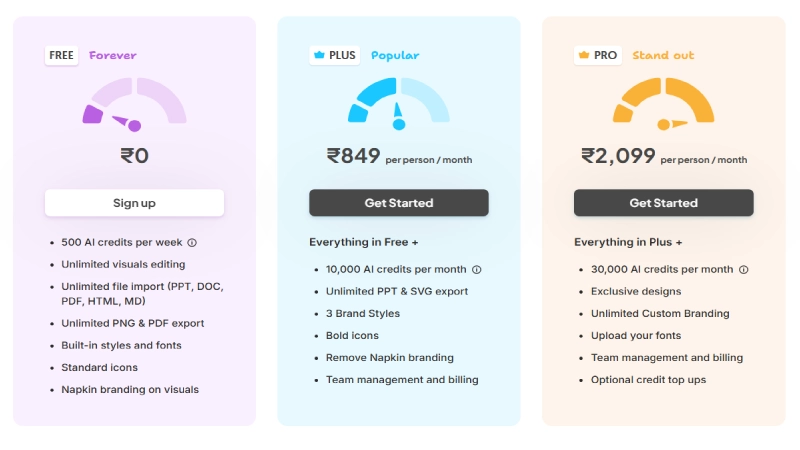
The Free plan costs nothing and includes 500 AI credits per week, unlimited editing of generated visuals, unlimited file imports across the supported formats, and unlimited PNG and PDF exports. The catch on the free tier is that Napkin’s branding appears on every visual you export, and PowerPoint or SVG export formats are not available. For occasional use, testing the tool, or generating a handful of diagrams per week, the free plan is genuinely usable rather than a stripped down teaser.
The Plus plan runs $9 per person per month on monthly billing, with roughly 25 percent savings if you commit to annual billing instead. Plus includes 10,000 AI credits per month, removes Napkin’s branding from your exports, unlocks PowerPoint and SVG export formats, allows up to three saved brand styles, and includes bold icon sets alongside the standard ones. This is the plan most individual professionals and small teams settle on, since it removes the two biggest limitations of the free tier: branding and export format restrictions.
READ MORE: Logically Review 2026: The All-in-One Workspace for Writing and Researching
The Pro plan is priced at $22 per person per month on monthly billing, again with a discount for annual commitments. Pro raises the monthly credit allowance to 30,000, removes the cap on saved brand styles entirely, allows custom font uploads, and includes exclusive icon and design sets not available on lower tiers. Pro makes the most sense for agencies or larger teams managing several distinct brand identities or producing high volumes of branded visual content regularly.
An Enterprise tier exists above Pro with pricing available only through direct sales contact. This tier typically adds custom credit allowances, dedicated support, and administrative controls suited to larger organizations with compliance or procurement requirements.
For most individual users and small businesses, the practical decision comes down to whether unbranded, presentation ready exports matter enough to justify $9 a month. If you are only generating a diagram occasionally for internal use where the Napkin watermark is not a concern, the free plan covers that need without any cost.
How to Use Napkin AI Step by Step
Getting started with Napkin AI does not require any design background, and the learning curve is short enough that most people produce a usable diagram within their first few minutes on the platform.
Begin by creating an account on Napkin’s website using an email address or a single sign on option if one is available. Once inside the workspace, you are dropped into a blank canvas with a text input area where the actual work begins.
Type or paste the content you want turned into a visual. This can be a few sentences describing a process, a list of comparison points, or a longer block of text pulled from an existing document. The more clearly structured your writing already is, whether through numbered steps, clear cause and effect language, or an obvious sequence, the better the initial diagram suggestion will match what you actually want.
After submitting your text, Napkin analyzes the structure and presents one or more diagram format suggestions. Review these options and select whichever best represents your content. If none of the suggestions feel right, you can rephrase your text slightly to nudge the tool toward a different structural interpretation, since the diagram type it proposes is directly tied to how your sentences are structured.
Once a diagram generates, move into editing mode to refine it. Click on individual text elements to adjust wording, select shapes to change their color or size, and browse the icon library to swap out generic icons for ones that better represent your specific content. This editing phase does not consume additional credits, so take the time to get the visual looking the way you want before exporting.
If you are on a paid plan and want your brand colors and logo applied automatically, set up your brand kit in the account settings before generating new diagrams. This saves time across multiple projects rather than manually restyling each new visual individually.
When the diagram is ready, choose your export format based on where it is headed next. PNG works well for quick sharing or embedding in a blog post. PDF suits printed materials or formal documents. PowerPoint export, available on paid plans, drops the diagram directly into a slide format ready for a presentation deck. SVG export, also paid tier only, gives you an editable vector file if you need to make further adjustments in a separate design tool later.
For ongoing work, consider installing the browser extension so you can generate diagrams directly from content you are reading elsewhere on the web without copying text back and forth manually.
Pros of Napkin AI
Napkin AI genuinely speeds up the process of creating a first draft visual, since most competing tools require you to start from a blank canvas or a generic template rather than content aware suggestions based on your own writing. The editability of generated diagrams is a real strength, since you are not stuck with a flattened image but a structured object you can adjust piece by piece. The free tier is generous enough to actually test the tool properly rather than functioning as a limited trial, which lowers the barrier to deciding whether it fits your workflow before spending anything. Support for more than sixty languages broadens its usefulness well beyond English language content creation. File import options mean you do not need to retype existing documents to pull diagrams out of them, and the range of export formats, particularly on paid plans, covers most practical destinations for a finished visual, from a blog post to a formal slide deck.
Cons of Napkin AI
The credit based system means heavy users, particularly teams converting long documents or numerous blog posts into visuals regularly, will burn through free tier credits quickly and need to budget for a paid plan sooner than casual users might expect. Export format restrictions on the free tier, specifically the lack of PowerPoint and SVG options, push anyone doing client facing or presentation work toward at least the Plus plan fairly quickly. Napkin AI is not built for complex data visualization, so anyone needing detailed charts built from large datasets will still need a dedicated tool for that specific task rather than relying on Napkin as a complete replacement. The diagram suggestions, while generally accurate, occasionally misread structure in ambiguous or loosely written text, requiring a rewrite of the input rather than a simple manual fix within the editor.
Frequently Asked Questions
Is Napkin AI free to use?
Yes. Napkin AI offers a permanent free plan with 500 AI credits per week, unlimited editing of generated visuals, and unlimited PNG and PDF exports. The free plan includes Napkin branding on all exported visuals and does not include PowerPoint or SVG export formats.
How much does Napkin AI cost on paid plans?
The Plus plan costs $9 per person per month on monthly billing, and the Pro plan costs $22 per person per month on monthly billing. Both plans offer roughly 25 percent savings with annual billing instead of monthly. An Enterprise tier is available with custom pricing through direct sales contact.
What types of diagrams can Napkin AI create?
Napkin AI can generate flowcharts, timelines, mind maps, pyramids, comparison diagrams, funnels, and general infographics based on the structure it detects in your input text.
Can I edit a diagram after Napkin AI generates it?
Yes. Every element in a generated diagram, including text, shapes, colors, icons, and connecting lines, remains fully editable after generation, and editing existing visuals does not consume additional credits.
Does Napkin AI support languages other than English?
Yes. Napkin AI can generate visuals and presentations in more than sixty languages, making it usable for teams and creators working outside English speaking markets.
What file formats can I import into Napkin AI?
Napkin AI accepts PowerPoint files, Word documents, PDFs, HTML pages, and Markdown files as import sources for generating diagrams.
What export formats does Napkin AI support?
All plans support PNG and PDF export. Paid plans on Plus and Pro tiers add PowerPoint and SVG export formats, along with full document export as continuous page, A4, or 16:9 presentation formatted PDFs.
Is Napkin AI good for team collaboration?
Paid plans include team management features and support real time collaborative editing on shared diagrams, making it suitable for brainstorming sessions and collaborative planning work.
Final Thoughts
Napkin AI earns its growing reputation by solving a specific and common frustration well. Rather than trying to be an all purpose design suite, it focuses narrowly on converting written explanation into structured visual output, and that focus shows in how well the generated diagrams actually match the logic of the input text. The free tier is strong enough to properly evaluate the tool without financial commitment, and the jump to Plus at $9 a month removes the two limitations, branding and export format, that matter most once you move from casual testing to regular use.
Where Napkin AI falls short is in complex data visualization and in credit consumption for high volume users, both of which are reasonable trade offs given what the tool is actually designed to do. If your work regularly involves explaining a process, a comparison, or a sequence of ideas and you need a visual to accompany that explanation, Napkin AI is worth adding to your toolkit. For heavier presentation design work or detailed chart building from large datasets, pairing it with a dedicated presentation tool or a data visualization platform will likely serve you better than expecting Napkin to cover every visual need on its own.